Sending APU102 Trains to Comet for Analysis
1.0 Purpose
This product bulletin explains how to package APU102 trains and configuration files into a ZIP file, download them from the APU and send them to Comet Electronics.
2.0 Scope
This product bulletin applies to LX-800 based APU units with a 1 GB Compact flash drive.
3.0 Specifics
To analyze various customer issues Comet Electronics may request that the customer send trains and APU configuration files to Comet. This bulletin explains how to use ZIPTRAIN.BAT to package all trains, including aborted trains, plus relevant configuration, and log files. The following files in the D:\AEI directory will be packaged together:
- ABORTED*.*
- *.0*
- *.ACC
- *.BAD
- *.CFG
- *.CSV
- *.DAT
- *.FSB
- *.HDR
- *.INF
- *.INI
- *.LOG
- *.LVD
- *.NCC
- *.OUT
- *.PPF
- *.SIG
- *.TIM
- *.TLR
- *.TXT
- *.VER
The ZIP file will be named TRyymmdd.ZIP, where yy is the two-digit year, mm is the two-digit month and dd is the two-digit day of the month.
To preserve APU disk space, ZIPTRAIN.BAT deletes TR*.ZIP first thing.
4.0 Packaging and Sending Procedure
4.0.1. Upload ZIPTRAIN.BAT to APU102
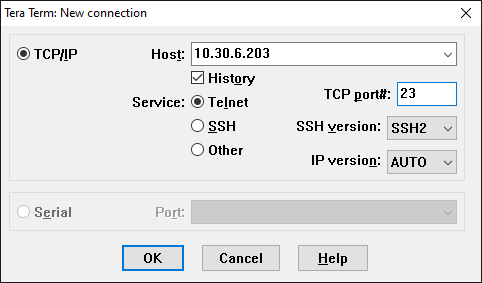
- Use Tera Term, or some other program, to connect to the APU102. The program must implement ZMODEM or XMODEM for file transfers. Here is a connection screenshot from Tera Term. Click OK and press the Enter key.
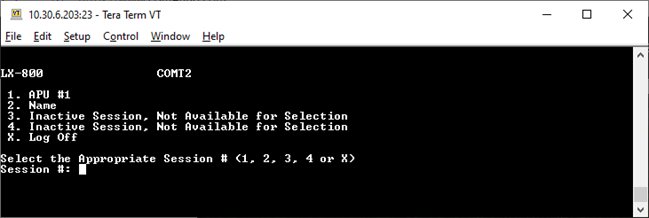
- You should see a screen like the following. Choose an active session and enter the supervisory password.
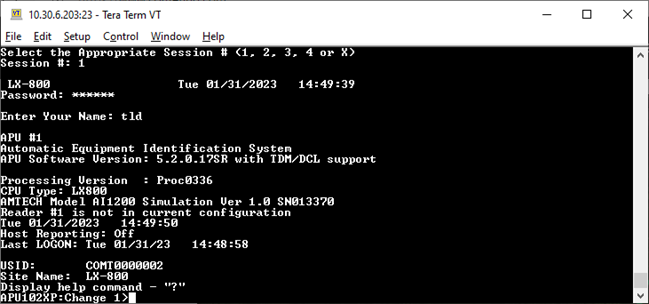
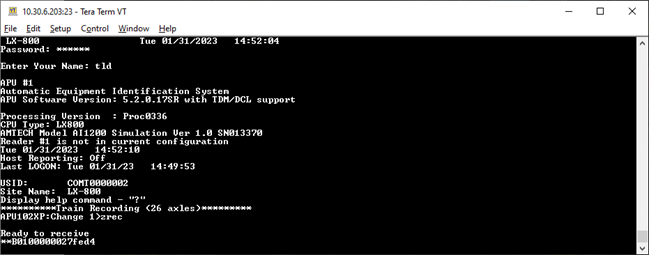
- You should see a screen like the following. Enter the `zrec` command.
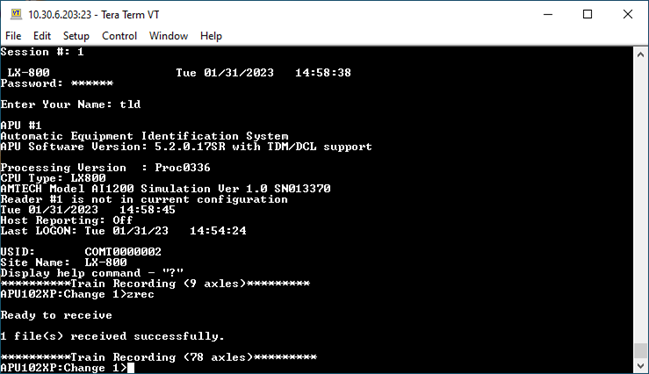
- You should see a screen like the following.
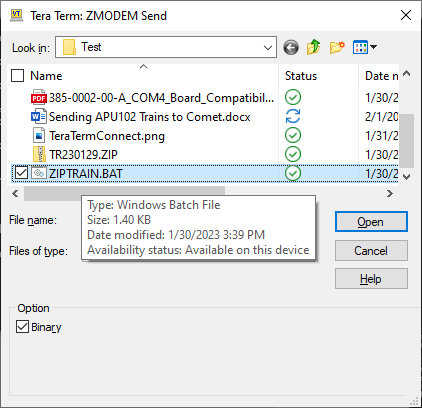
- From the Tera Term menus, choose ZMODEM SEND using File > Transfer > ZMODEM > Send, then browse for and open `ZIPTRAIN.BAT`.
- Transfer `ZIPTRAIN.BAT` as instructed.
- You should see the following.