
RailNET Updating the Train Processor: Difference between revisions
mNo edit summary |
mNo edit summary |
||
| Line 7: | Line 7: | ||
#Enter <shell proc0338.exe -o> to begin installation of the processor. If successful, it will return a list of files inflating and extracting. | #Enter <shell proc0338.exe -o> to begin installation of the processor. If successful, it will return a list of files inflating and extracting. | ||
#Once installation is completed, enter the <r> command to perform a full reboot. | #Once installation is completed, enter the <r> command to perform a full reboot. | ||
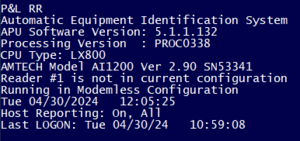
#Login the APU once more and check the log-on message for the Processing Version. The processing version should now match the version installed in the previous steps. In this case, PROC0338. | #Login the APU once more and check the log-on message for the Processing Version. The processing version should now match the version installed in the previous steps. In this case, PROC0338.[[image:img1737000692856.png|300px|center|frameless]] | ||
If this procedure does not succeed, please contact Comet Support for further instruction. | If this procedure does not succeed, please contact Comet Support for further instruction. | ||
Revision as of 17:22, 15 January 2025
For example purposes, Proc0338.exe will be used.
Procedure
- Login to the supervisory menu of the APU.
- Enter <zrec Proc0338.exe> to receive the new processor.
- Enter <dir Proc0338.exe> to confirm the upload was successful.
- Enter <shell proc0338.exe -o> to begin installation of the processor. If successful, it will return a list of files inflating and extracting.
- Once installation is completed, enter the <r> command to perform a full reboot.
- Login the APU once more and check the log-on message for the Processing Version. The processing version should now match the version installed in the previous steps. In this case, PROC0338.

If this procedure does not succeed, please contact Comet Support for further instruction.