
Setting Up Reports with SFTP: Difference between revisions
mNo edit summary |
|||
| (8 intermediate revisions by 2 users not shown) | |||
| Line 1: | Line 1: | ||
<p>The Secure File Transfer Protocol (SFTP) is used to manage files over a remote connection. At Comet, one way SFTP is used is to send reports from the APU. | <p>The Secure File Transfer Protocol (SFTP) is used to manage files over a remote connection. At Comet, one way SFTP is used is to send reports from the APU. Configuration is available on the APU to support both consist reports and maintenance reports. </p> | ||
= Preparation = | = Preparation = | ||
[[Media:SFTPConsist.zip|Consist Sample Files]] | |||
[[Media:SFTPMaint.zip|Maintenance Sample Files]] | |||
SFTP can be setup and deployed by Comet Support if we have access to the site. | |||
#In the case that we don’t have access to the site: | |||
##A Telnet session that supports Zmodem(Hyper Terminal, Tera Term, Secure CRT) will be used. | |||
##Files used in the process will be sent with a .txt extension as most email firewalls will block .ACC and .BAT files. Download these files and change the extensions back to .ACC and .BAT as directed. | |||
##Two different files, an .ACC and a .BAT, will be needed. The .ACC file will point to the .BAT file. Both can be obtained by contacting Comet Support. If setting up for Consist ''and'' Maintenance Reporting via SFTP, four different files will be needed. | ##Two different files, an .ACC and a .BAT, will be needed. The .ACC file will point to the .BAT file. Both can be obtained by contacting Comet Support. If setting up for Consist ''and'' Maintenance Reporting via SFTP, four different files will be needed. | ||
#For SFTP to be setup, the following information Is needed: | |||
##Username | |||
##Password | |||
##URL | |||
<p style="margin-left: | <p style="margin-left: 50px;" >Send this information to Comet Support if Support will be setting up SFTP.</p> | ||
We highly recommend using names for the files that indicate Consist or Maintenance. It is recommended to name these files based on the name of the railroad the site belongs to, as well. Using a unique name is important, as the same file name being used elsewhere can cause issues. | |||
#For example, if the railroad is CSX:<br>When naming a consist file, the name “CCSXSFTP.ACC/.BAT” would be used.<br>When naming a maintenance file, the name “MCSXSFTP.ACC/.BAT” would be used. | |||
= Editing The Files = | = Editing The Files = | ||
| Line 26: | Line 31: | ||
#Using <zrec>, upload all of the edited .ACC and .BAT files. | #Using <zrec>, upload all of the edited .ACC and .BAT files. | ||
#After the files have been uploaded, check if they are present using the <dir> command. To do so, enter <dir [filename]>, replacing filename with the appropriate .ACC or .BAT filename. | #After the files have been uploaded, check if they are present using the <dir> command. To do so, enter <dir [filename]>, replacing filename with the appropriate .ACC or .BAT filename. | ||
##For example, <dir CCSXFTP.ACC> would search for the CCSXFTP.ACC file. | ##For example, <dir CCSXFTP.ACC> would search for the CCSXFTP.ACC file. | ||
| Line 34: | Line 38: | ||
#Enter the <ep> command to open the edit parameters menu. | #Enter the <ep> command to open the edit parameters menu. | ||
#Navigate to Session 1 in the edit parameters menu. | #Navigate to Session 1 in the edit parameters menu. | ||
#Enter "3" to access AEI Report Connect. This submenu contains the information required to establish an SFTP connection is stored. This allows the APU to send consist reports. See below for an example of what this menu looks like.<br>[ | #Enter "3" to access AEI Report Connect. This submenu contains the information required to establish an SFTP connection is stored. This allows the APU to send consist reports. See below for an example of what this menu looks like.<br>[[image:img1737423083070.png|287px|center|frameless]]<br> | ||
#Enter the filename of the .ACC file used for consist reports created earlier in the AccessFilename parameter. | #Enter the filename of the .ACC file used for consist reports created earlier in the AccessFilename parameter. | ||
#Navigate back to Session 1 by pressing <esc> or <x>. | #Navigate back to Session 1 by pressing <esc> or <x>. | ||
#Enter “2” to access AEI Report Opts. This submenu configures how the APU reports its data. See below for an example of what this menu looks like.<br>[ | #Enter “2” to access AEI Report Opts. This submenu configures how the APU reports its data. See below for an example of what this menu looks like.<br>[[image:img1737464403104.png|289px|center|frameless]]<br> | ||
#Set the HostReportingOption parameter to 1 to enable reporting. | #Set the HostReportingOption parameter to 1 to enable reporting. | ||
#If setting up Maintenance reports, repeat this process for the Maintenance Reports. Option 4 will access the Maintenance Report Options submenu, and option 5 will access the Maintenance Report Connect submenu.<br> | #If setting up Maintenance reports, repeat this process for the Maintenance Reports. Option 4 will access the Maintenance Report Options submenu, and option 5 will access the Maintenance Report Connect submenu.<br> | ||
| Line 43: | Line 47: | ||
#To test the SFTP setup for consist reports, type in, HR,NOW at the supervisory menu. This will force the APU to send consist reports. | #To test the SFTP setup for consist reports, type in, HR,NOW at the supervisory menu. This will force the APU to send consist reports. | ||
#To test the maintenance reports, enter the <sm> command to simulate maintenance. Wait a few minutes for everything to send. | #To test the maintenance reports, enter the <sm> command to simulate maintenance. Wait a few minutes for everything to send. | ||
#At the Supervisory menu, enter <sys> to access the system log. Select 101 for reporting and c for continuous. To check if the report settings are correct, the filename chosen previously for the .ACC file(s) should now be reflected in the log. The file transfer log should also report messages similar to the following: | #At the Supervisory menu, enter <sys> to access the system log. Select 101 for reporting and c for continuous. To check if the report settings are correct, the filename chosen previously for the .ACC file(s) should now be reflected in the log. The file transfer log should also report messages similar to the following:<br>[[image:img1737465999134.png|448px|center|frameless]]<br> | ||
< | <p>This indicates that the files have been successfully reported.</p> | ||
= Troubleshooting = | = Troubleshooting = | ||
<p>If | <p>If issues reporting are still present after setup:</p> | ||
#Ensure the DNS settings are correct. Check if the IPs in the DNS file can be successfully pinged. | #Ensure the DNS settings are correct. Check if the IPs in the DNS file can be successfully pinged. | ||
#Check filenames and match them with the parameters. | #Check filenames and match them with the parameters. | ||
#Ensure a full reboot has been performed. | #Ensure a full reboot has been performed. | ||
#Check the passwords in the SFTP file. | #Check the passwords in the SFTP file. | ||
Latest revision as of 19:58, 8 September 2026
The Secure File Transfer Protocol (SFTP) is used to manage files over a remote connection. At Comet, one way SFTP is used is to send reports from the APU. Configuration is available on the APU to support both consist reports and maintenance reports.
Preparation
SFTP can be setup and deployed by Comet Support if we have access to the site.
- In the case that we don’t have access to the site:
- A Telnet session that supports Zmodem(Hyper Terminal, Tera Term, Secure CRT) will be used.
- Files used in the process will be sent with a .txt extension as most email firewalls will block .ACC and .BAT files. Download these files and change the extensions back to .ACC and .BAT as directed.
- Two different files, an .ACC and a .BAT, will be needed. The .ACC file will point to the .BAT file. Both can be obtained by contacting Comet Support. If setting up for Consist and Maintenance Reporting via SFTP, four different files will be needed.
- For SFTP to be setup, the following information Is needed:
- Username
- Password
- URL
Send this information to Comet Support if Support will be setting up SFTP.
We highly recommend using names for the files that indicate Consist or Maintenance. It is recommended to name these files based on the name of the railroad the site belongs to, as well. Using a unique name is important, as the same file name being used elsewhere can cause issues.
- For example, if the railroad is CSX:
When naming a consist file, the name “CCSXSFTP.ACC/.BAT” would be used.
When naming a maintenance file, the name “MCSXSFTP.ACC/.BAT” would be used.
Editing The Files
Be very careful when editing the files. A simple deletion of a symbol like % or = could result in SFTP failure. The only files that will need editing are the .BAT files. The .ACC files should not be edited.
- To edit the .BAT file, simply right-click on the file and select Edit from the right-click menu.
- There will be a section that lists the username, password, and URL to be used. Change these values to match the information noted previously.
- Make sure to save the file after any changes have been made when editing.
Uploading the Files
- Login to the supervisory menu of the APU.
- Enter the <zrec> command, this should prompt a pop-up to begin the file transfer. What the pop-up looks like depending on what Telnet terminal is being used. Some require you to type the file and location of the file.
- Using <zrec>, upload all of the edited .ACC and .BAT files.
- After the files have been uploaded, check if they are present using the <dir> command. To do so, enter <dir [filename]>, replacing filename with the appropriate .ACC or .BAT filename.
- For example, <dir CCSXFTP.ACC> would search for the CCSXFTP.ACC file.
Changing the Parameters
- Login to the supervisory menu of the APU.
- Enter the <ep> command to open the edit parameters menu.
- Navigate to Session 1 in the edit parameters menu.
- Enter "3" to access AEI Report Connect. This submenu contains the information required to establish an SFTP connection is stored. This allows the APU to send consist reports. See below for an example of what this menu looks like.
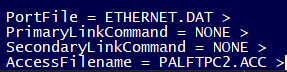
- Enter the filename of the .ACC file used for consist reports created earlier in the AccessFilename parameter.
- Navigate back to Session 1 by pressing <esc> or <x>.
- Enter “2” to access AEI Report Opts. This submenu configures how the APU reports its data. See below for an example of what this menu looks like.
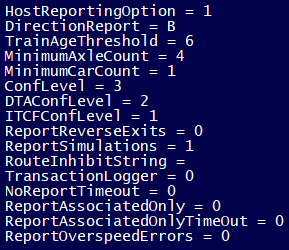
- Set the HostReportingOption parameter to 1 to enable reporting.
- If setting up Maintenance reports, repeat this process for the Maintenance Reports. Option 4 will access the Maintenance Report Options submenu, and option 5 will access the Maintenance Report Connect submenu.
- Once all the files and parameters have been changed, perform a full reboot using the <r> command. This will ensure the changes made will take effect.
- To test the SFTP setup for consist reports, type in, HR,NOW at the supervisory menu. This will force the APU to send consist reports.
- To test the maintenance reports, enter the <sm> command to simulate maintenance. Wait a few minutes for everything to send.
- At the Supervisory menu, enter <sys> to access the system log. Select 101 for reporting and c for continuous. To check if the report settings are correct, the filename chosen previously for the .ACC file(s) should now be reflected in the log. The file transfer log should also report messages similar to the following:



This indicates that the files have been successfully reported.
Troubleshooting
If issues reporting are still present after setup:
- Ensure the DNS settings are correct. Check if the IPs in the DNS file can be successfully pinged.
- Check filenames and match them with the parameters.
- Ensure a full reboot has been performed.
- Check the passwords in the SFTP file.