
Transferring Data From LX-800 to T10: Difference between revisions
Created page with "As Comet transitions to the T10, we are developing tools to help our customers with the transfer of data and files from the LX-800 to the T10. This procedure is supposed to make that process smooth and painless.<br>'''Parts:'''<br>• CF card previously used with an LX-800<br>• CF card reader with male USB connection = Procedure<br> = 1. Insert the CF card into the card reader (pictured below).465px|center|frameless 2. Plug the USB from..." |
No edit summary |
||
| (6 intermediate revisions by one other user not shown) | |||
| Line 1: | Line 1: | ||
As Comet transitions to the T10, we are developing tools to help our customers with the transfer of data and files from the LX-800 to the T10. This procedure is supposed to make that process smooth and painless. | As Comet transitions to the T10, we are developing tools to help our customers with the transfer of data and files from the LX-800 to the T10. This procedure is supposed to make that process smooth and painless. The data transfer capabilities are available for any CF card previously used with a Comet AEI site. Alternatively, another storage device can be used if properly set up. Information transferred includes, but is not limited to: parameters, configuration settings, FTP connection data and CINQ connection data. | ||
= Transferring from an LX-800 CF Card = | |||
'''Parts:'''<br>• CF card with site data to be transferred<br>• CF card reader with male USB connection | |||
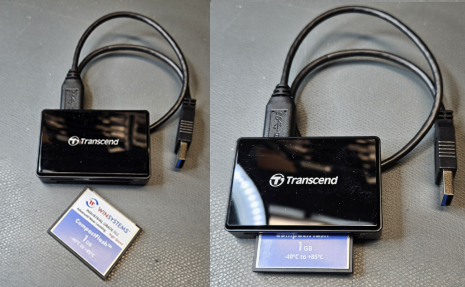
# Insert the CF card into the card reader (pictured below).[[image:img1736978116179.png|465px|center|frameless]] | |||
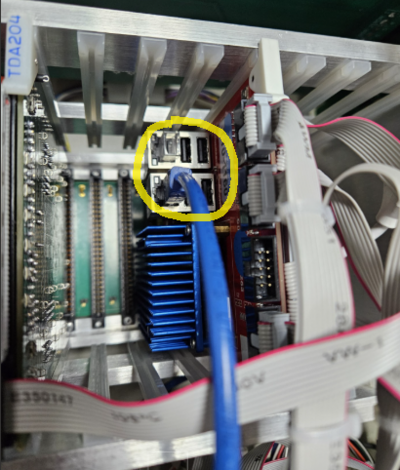
# Plug the USB from the card reader to the T10 (pictured below). There are USB ports on the front and back of the board.[[image:img1736914413002.png|400px|center|frameless]] | |||
# Boot up the APU normally. The T10 will automatically copy files from the CF card. This process can take up to 2 minutes after rebooting. | |||
The unit will reboot once the process is finished. Review the APU's files to ensure everything has been copied over. The CF card reader can be safely removed once the files have been copied.<br> | |||
= Transferring from AEI Directory Backup = | |||
'''Parts:'''<br> | |||
• Backup of the site's AEI directory<br>• Storage device with male USB connection (e.g. USB Flash Drive) | |||
#Transfer the site's AEI directory to the root of the storage device. | |||
##For example, if the drive the device is stored on is called "F:", the file path for the transferred directory would be "F:\aei" | |||
#Plug the storage device in via a USB port available on the T10. There are USB ports on the front and back of the board.<br>[[image:img1736914413002.png|400px|center|frameless]] | |||
#Boot the APU normally. The T10 will automatically copy files from the storage device. This process can take up to 2 minutes after rebooting. | |||
The unit will reboot once the process is finished. Review the APU's files to ensure everything has been copied over. The storage device can be safely removed once the files have been copied. | |||
= Other Transfer Options = | |||
If the above procedures are not applicable, configuration of the site must be done by hand. This can be done using the <ep> command to edit the parameters. The original parameters may be referenced, if they are available. | |||
Latest revision as of 16:17, 6 April 2026
As Comet transitions to the T10, we are developing tools to help our customers with the transfer of data and files from the LX-800 to the T10. This procedure is supposed to make that process smooth and painless. The data transfer capabilities are available for any CF card previously used with a Comet AEI site. Alternatively, another storage device can be used if properly set up. Information transferred includes, but is not limited to: parameters, configuration settings, FTP connection data and CINQ connection data.
Transferring from an LX-800 CF Card
Parts:
• CF card with site data to be transferred
• CF card reader with male USB connection
- Insert the CF card into the card reader (pictured below).
- Plug the USB from the card reader to the T10 (pictured below). There are USB ports on the front and back of the board.
- Boot up the APU normally. The T10 will automatically copy files from the CF card. This process can take up to 2 minutes after rebooting.


The unit will reboot once the process is finished. Review the APU's files to ensure everything has been copied over. The CF card reader can be safely removed once the files have been copied.
Transferring from AEI Directory Backup
Parts:
• Backup of the site's AEI directory
• Storage device with male USB connection (e.g. USB Flash Drive)
- Transfer the site's AEI directory to the root of the storage device.
- For example, if the drive the device is stored on is called "F:", the file path for the transferred directory would be "F:\aei"
- Plug the storage device in via a USB port available on the T10. There are USB ports on the front and back of the board.
- Boot the APU normally. The T10 will automatically copy files from the storage device. This process can take up to 2 minutes after rebooting.
The unit will reboot once the process is finished. Review the APU's files to ensure everything has been copied over. The storage device can be safely removed once the files have been copied.
Other Transfer Options
If the above procedures are not applicable, configuration of the site must be done by hand. This can be done using the <ep> command to edit the parameters. The original parameters may be referenced, if they are available.